How to Resolve Windows SmartScreen When Installing Bindago
After you download Bindago for Windows, Microsoft Defender SmartScreen may stop the installer. Typical copy on that screen is Windows protected your PC, or that SmartScreen blocked an unrecognized application from starting.
Bindago is not being flagged as malware. SmartScreen scores files by how often they are downloaded and run. Desktop apps that are new or less common can hit this check even when they come from the official site. Use the installer from bindago.com and follow the steps below.
Example of the warning
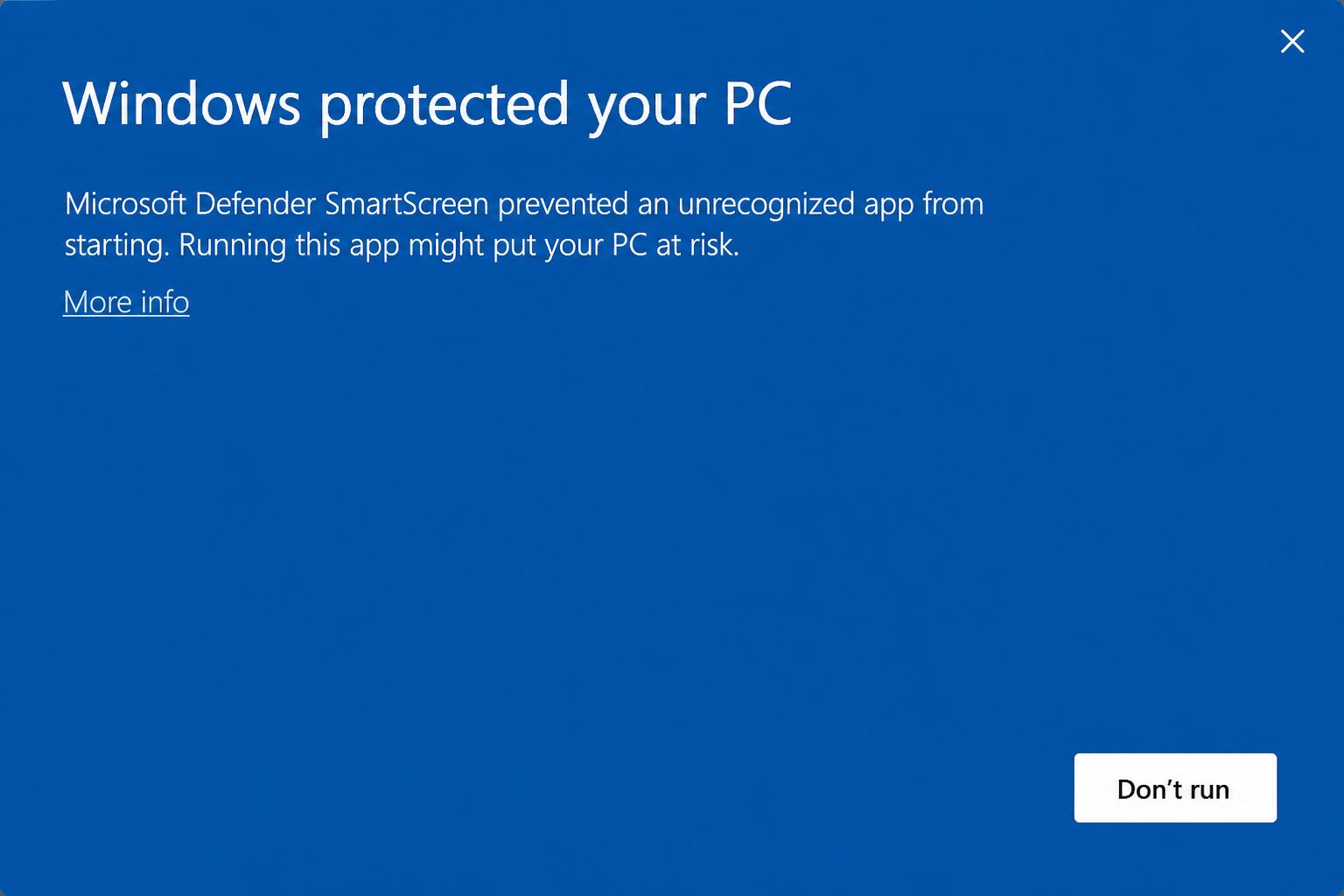
Microsoft Edge can also show a blue download warning for the same reason. That is Windows treating the file as coming from the web, not a sign that Bindago itself is unsafe.
Fastest path: remove the block in file Properties
The most reliable fix is to clear the "downloaded from the internet" flag on the installer, then launch it again:
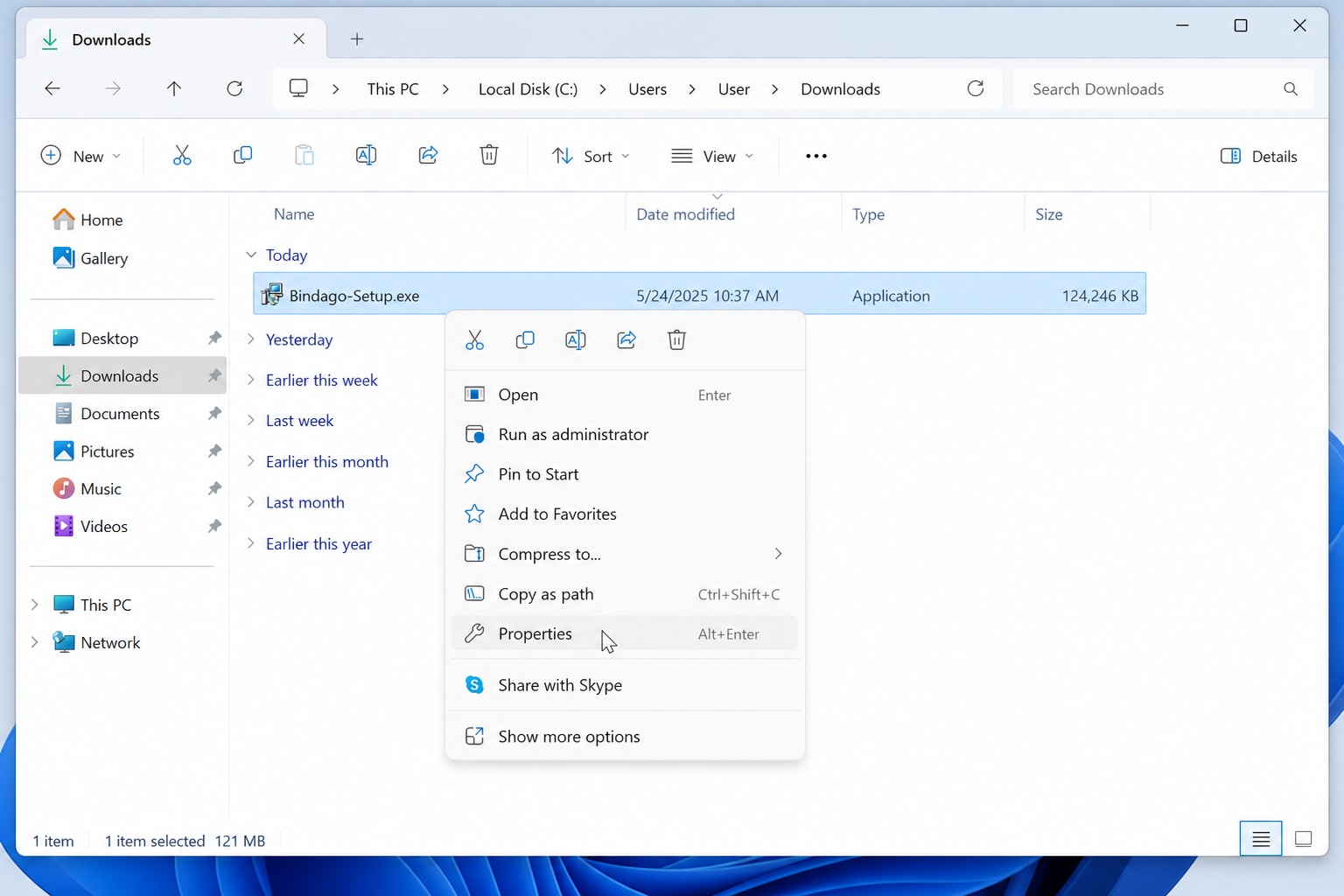
1. In File Explorer, find the Bindago setup file (often in Downloads). Right-click it and choose Properties.
2. Stay on the General tab.
3. Scroll to Security at the bottom and tick Unblock.
4. Choose Apply, then OK to close the window.
5. Open the installer once more to continue Bindago setup.
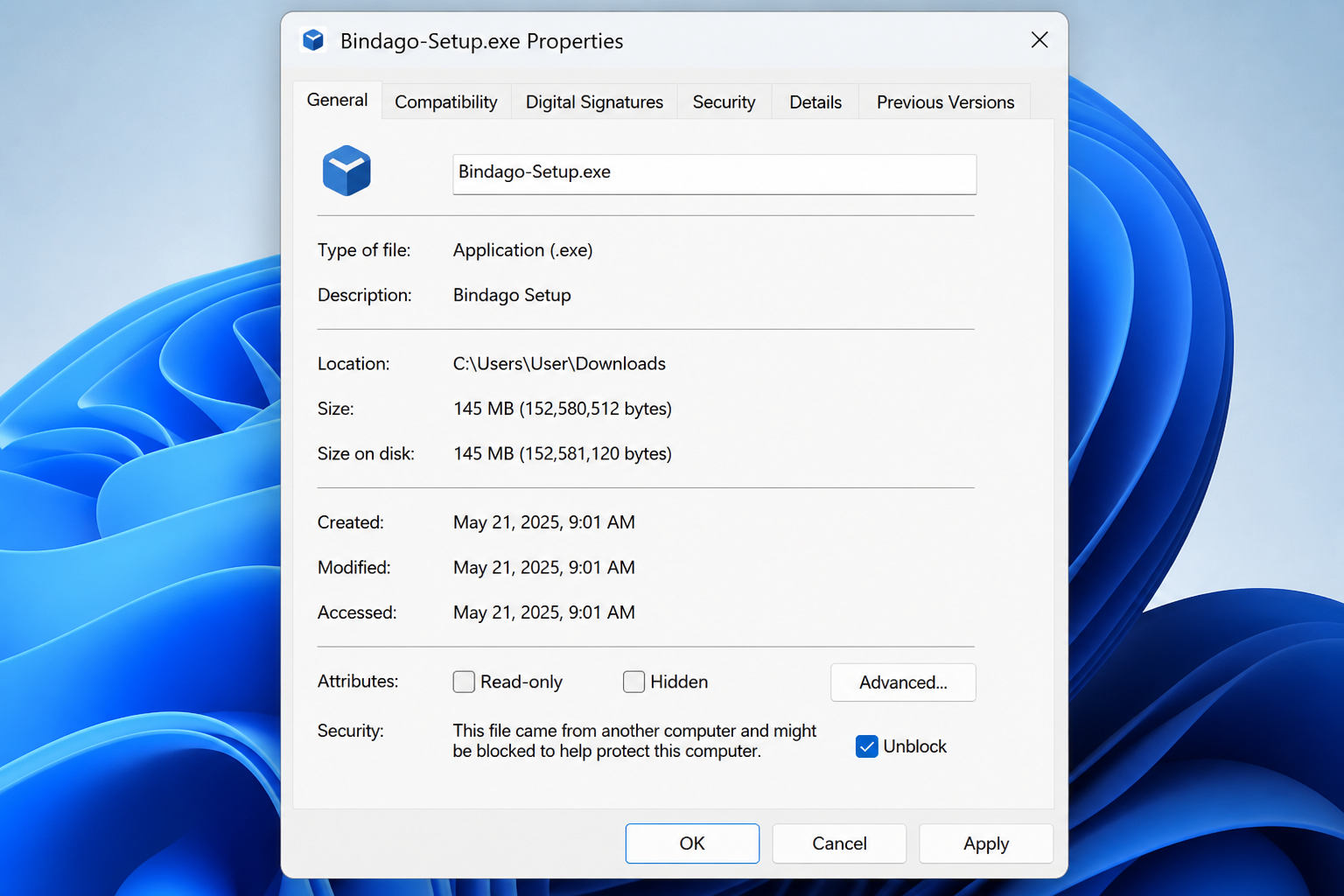
If Unblock is missing: Windows may not have marked this copy of the file as an internet download. Use the SmartScreen buttons below, or grab a fresh installer from bindago.com and try Properties again.
Another option: continue from the warning
You can also proceed without opening Properties first:
- On the SmartScreen window, choose More info.
- Choose Run anyway.
- Finish Bindago setup as usual.
If the warning returns the next time you open Bindago, go back and Unblock the file in Properties so the flag is cleared permanently.
Need a hand?
Send a screenshot of the dialog, your Windows edition (10 or 11), and confirm you used bindago.com. We will walk you through the rest.